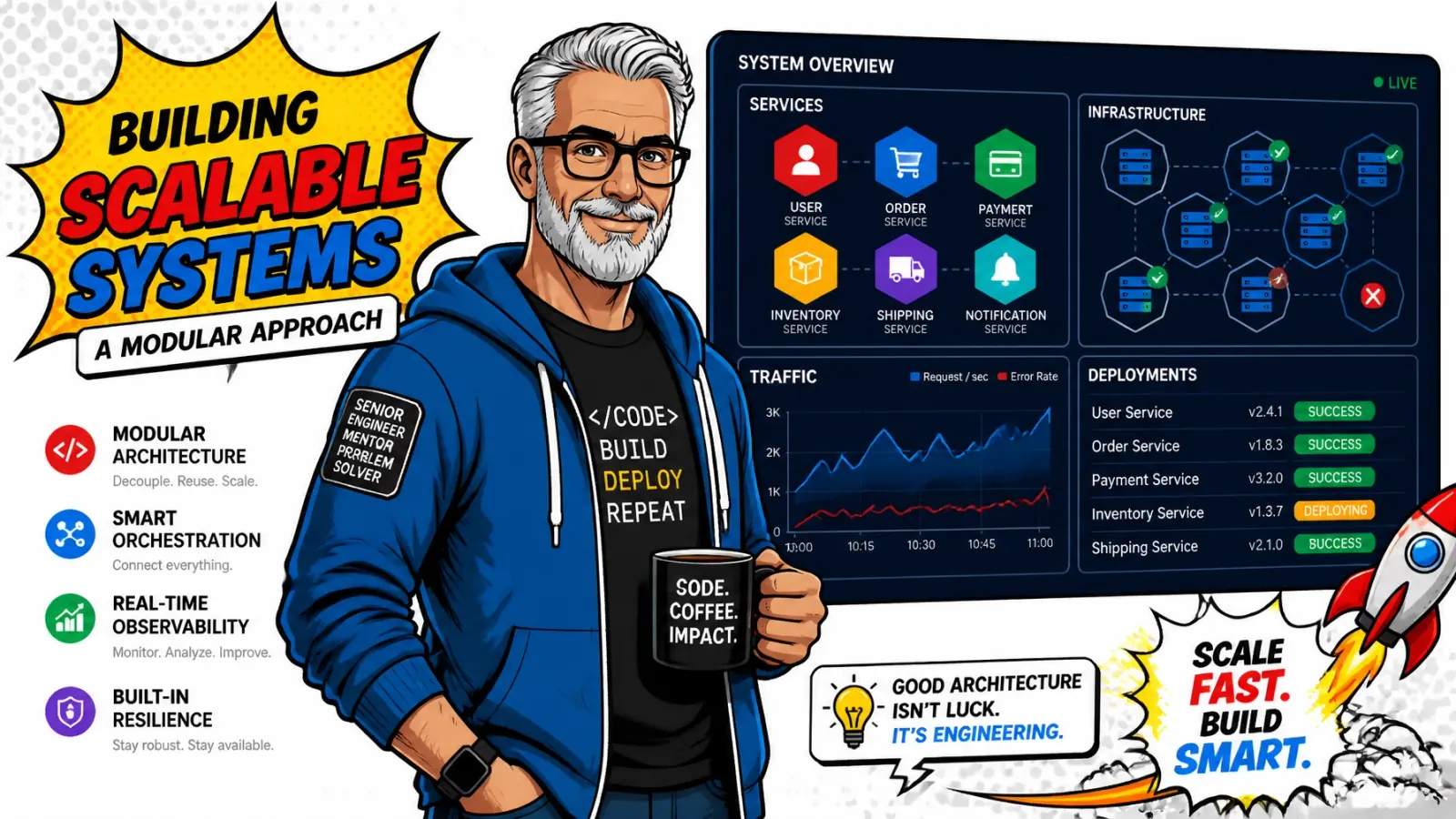
One server running Coolify, your database, three apps and every build is fine for an MVP. For real customers, split the control plane, the builds and the data apart.
You moved your apps off a messy manual VPS and into Coolify. Everything is in one place. Then traffic spikes.
Hosting your production database, three web apps and a memory-heavy build on a single $10 DigitalOcean droplet is a recipe for trouble.
The single-server trap
It’s fine for a side project. With paying customers, you need a plan for what happens when that one server hits 100% CPU, or when a deploy takes the whole site down for five minutes.
Coolify can handle larger workloads. You need to set it up the right way.
What this guide covers
Multi-server nodes, rolling deployments, dedicated build servers and CI wiring. If you’re just getting started, my walkthroughs on Coolify and Docker for SaaS hosting and running a fully self-hosted SaaS on Coolify cover the foundations.
Beyond the single server
The most common mistake I see is keeping everything on one node. When a build starts, it eats CPU and RAM. The web app lags and the database gets starved.
Split control plane from workloads
Run the Coolify instance on one small server of its own. That’s mission control. Then add separate app servers where your containers live.
In Coolify, open Servers, add a server over SSH, and choose which server each resource deploys to. That gives you horizontal scalability: when one server fills up, add another and point the next app there.
It’s the same separation I use when building custom web applications, and it keeps one machine from taking everything down.

Rolling deploys that don’t drop requests
Nothing hurts user trust faster than a “502 Bad Gateway” every time you push a small CSS fix. Many self-hosted setups kill the old container and then start the new one, and users fall into the gap.
How Coolify rolls
For Nixpacks, Railpack, Static, Dockerfile and Docker Image apps, Coolify starts the replacement container while the old one keeps running. It waits for the new container’s health check, then stops and removes the old one. Docker Compose apps don’t get this rolling sequence.
Without a health check, Coolify treats a container that started as ready, even if the app inside is still booting.
The workflow I use
- Create a readiness endpoint. In your Laravel, Vue or Node app, add a route like
/healthzthat returns 200 only when the app can serve real requests. - Configure the check. In the app, open Configuration > Healthcheck, choose HTTP, set the path to
/healthzand an interval of about 5 seconds. The check runs inside the container, so the image needscurlorwget. - Shut down gracefully. Under Configuration > Advanced > Operations, set the stop grace period (30 seconds by default) to how long the app needs to finish in-flight requests.
On the default Traefik proxy, unhealthy containers are removed from routing, so traffic stays on the old container until the new one passes.
No health check
Real readiness check
/healthz fails until the app can serve requests. Coolify keeps the old container live until the new one passes, then gives it time to finish its work.Coolify’s own docs are clear that rolling updates don’t guarantee zero downtime. Both versions run side by side for a moment, so migrations, queues and sessions have to work with old and new code.
A dedicated build server
Docker builds are heavy. Compiling assets, installing npm packages and building images can push a server’s usage through the roof. If that build runs on the server serving your customers, they feel it.
How it works
Mark a high-CPU server as a build server in Coolify. On deploy, Coolify builds the image there, pushes it to a container registry, and the app server pulls the finished image.
What you need
- A registry: Docker Hub, GitHub Container Registry or a self-hosted one. Run
docker loginon the build server, and on the app server too if the registry is private. - A dedicated machine: a server marked as a build server can’t be a deployment destination.
- Matching CPU architecture: build on the same architecture your app servers run.
Your production server never feels the build. It just pulls a ready-to-run image.
What about the database?
Coolify makes “New Database” one click, but running production Postgres or MySQL in a container on the same server as your app is risky.
For production I usually recommend a managed database like AWS RDS or Google Cloud SQL, with backups and point-in-time recovery handled for you.
In Coolify you pass the connection string as an environment variable. State stays separate from compute, the same stateless app discipline that makes horizontal scaling possible.
CI/CD with deploy webhooks
For a professional workflow, code should move from GitHub to production without anyone clicking in the Coolify UI.
I prefer GitHub Actions. Coolify’s GitHub App integration works well, but Actions let you run tests and linting first and trigger the deploy only when everything passes.
Wire the webhook
Create an API token with only the deploy permission under Keys & Tokens > API Tokens, and store it as a CI secret. Copy the app’s deploy webhook from Configuration > Webhooks. On a self-hosted instance, API access must be turned on in Settings > Advanced.
name: deploy to production
on:
  push:
    branches:
      - main

jobs:
  deploy:
    runs-on: ubuntu-latest
    steps:
      - name: trigger coolify webhook
        run: |
          curl --fail -X GET "${{ secrets.COOLIFY_WEBHOOK_URL }}" \
            -H "Authorization: Bearer ${{ secrets.COOLIFY_TOKEN }}"
Put your test job before this step and broken code never reaches your servers.

Configuration tips
- Resource limits: set CPU and memory limits for every app so one leaky container can’t take the whole server.
- External backups: if you run databases inside Coolify, use S3-compatible backups. I use Backblaze B2 or Cloudflare R2. Never rely on local backups alone.
- Docker cleanup: large images fill disks fast. Use Coolify’s automated Docker cleanup or a cron job (my cron explainer checks the schedule).
- External monitoring: Coolify tells you a container is running. A tool like Better Stack or GlitchTip tells you whether a human can use the site.
Key takeaways
- Split the control plane. Coolify on its own small server, apps on separate nodes.
- Make health checks honest. Rolling updates are only as safe as your readiness endpoint and graceful shutdown.
- Offload builds. A dedicated build server plus a registry keeps builds off production.
- Separate data from compute. Managed databases for production state.
- Deploy from CI. A deploy-only token and a webhook after your tests pass.
Scaling well means a system that behaves predictably. Whether you’re building a Shopify app or a Laravel SaaS, the principles are the same. If you’re moving a growing app onto Coolify, here’s how I help teams set up multi-server deploys and CI, or drop me a line.
Have you ever had a build crash your production server in the middle of the day?